Collector guide
DVD Player Not Reading a Disc? Try This First
A calm collector’s checklist for separating a disc problem from a player problem before you replace a title that may be hard to find again.
A DVD player that suddenly says “no disc” can make a collector jump straight to the worst conclusion. Before you replace a favorite copy, assume nothing. The useful question is not “what part has failed?” It is “what changed, and can I separate the disc from the player?” A calm test with two or three known-good discs can save a hard-to-find title from unnecessary handling and save you from replacing equipment that only needed a simple reset.
Work from the outside in. Check the disc, check compatibility, then check whether the player behaves the same way with another commercially made DVD. That order protects the copy you care about and gives you a clearer answer than repeatedly loading the same disc. If the title is rare or out of print, handle it by the edge and center hole, then return it to its case between each test.
Start with the easiest checks
First, make sure the disc is seated with the playing side facing the direction your player requires. That sounds obvious, but it is the fastest thing to rule out, especially with a tray player, a portable player, or a title that has just been taken from a stack. Check that the tray closes fully and that no case insert, loose paper, or packaging is keeping it from closing normally.
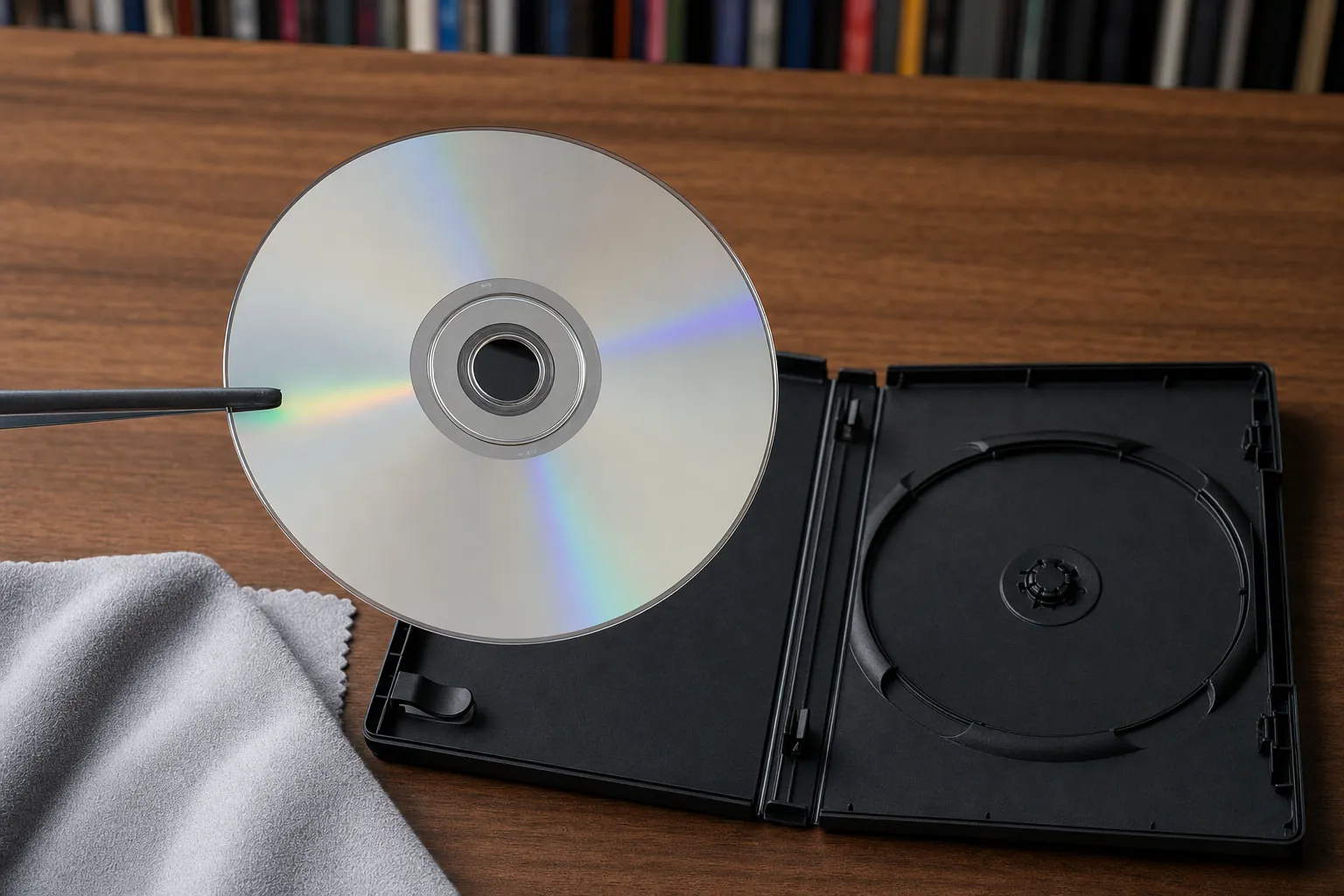
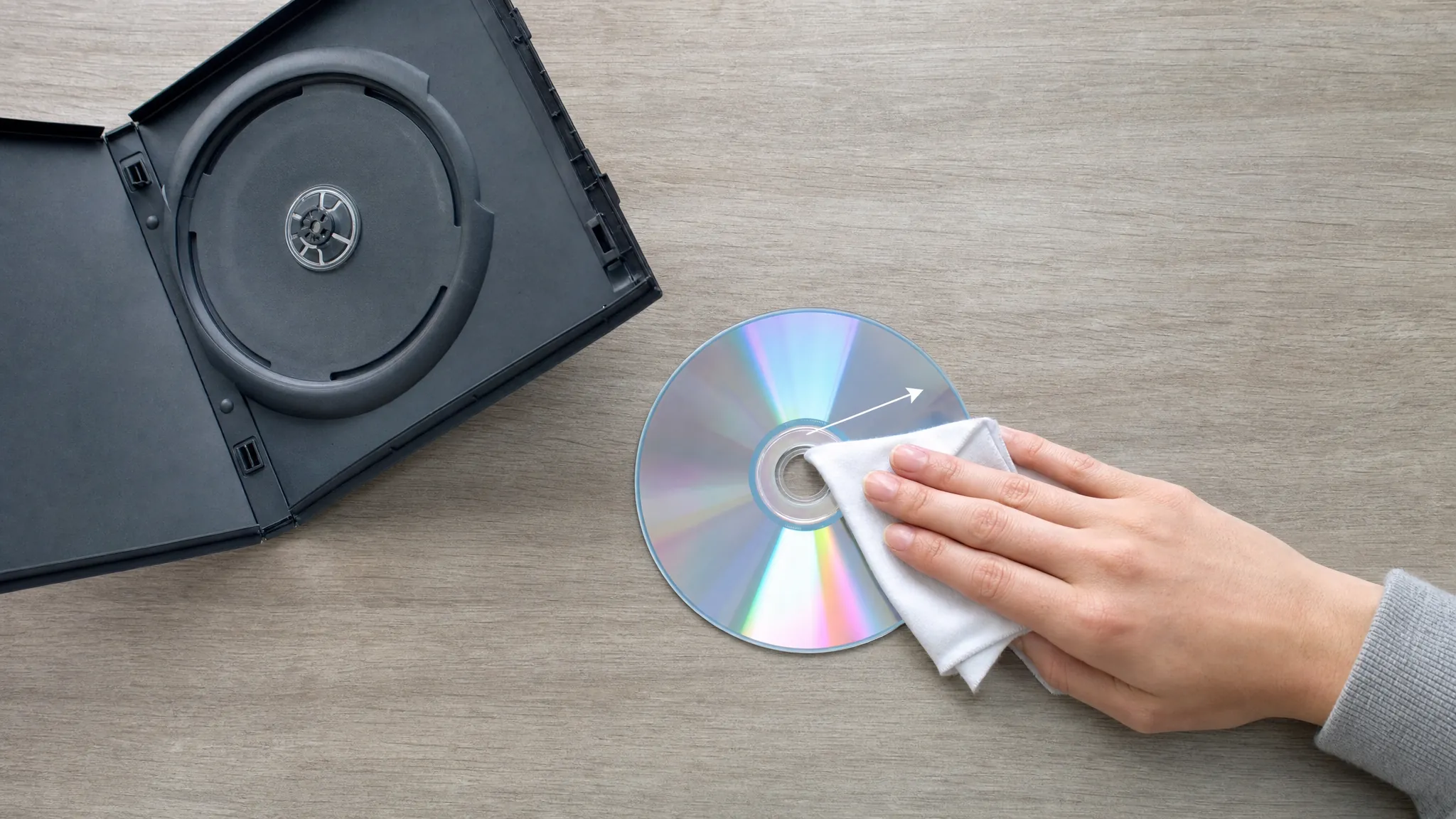
Next, look at the playing surface under a soft light. You are looking for fingerprints, dust, residue, a crack near the center hub, or a deep scratch. Do not rub at a mark with a shirt sleeve or paper towel. If the disc needs attention, use the careful center-to-edge method in our DVD cleaning guide, then let it dry fully before you load it again. The goal is to remove a simple obstacle, not to turn a small mark into damage.
Sony’s troubleshooting guidance for “no disc” and “disc error” messages starts with the same basics: confirm the disc is present, inserted correctly, supported by the player, and clean. It then recommends trying a different commercially produced disc before moving on to service. That is the most helpful collector rule here: change one variable at a time.
Use a known-good disc as your control
Choose a standard, commercially pressed DVD you have played recently in this same player. Avoid a burned disc, an import, a DVD-R, a double-sided disc, or a title with an unusual format for this first test. The point is to give the player the easiest reasonable job.
If the known-good disc plays, the player is at least reading discs. That does not prove the original title is ruined. It tells you to look more closely at that copy’s condition, region, format, and edition. Try the original title once more after cleaning it, then try it in another compatible player if you can. A single-disc failure is usually a disc or compatibility question before it is a player failure.
If the known-good disc also fails, test one more standard DVD. Two or three separate failures are more meaningful than one. Make a short note of what happens: does the tray close, does the disc spin, does the player show a message, or does it return to the home screen? Those observations are useful if you later consult the manual, seek repair, or decide to replace the player.
Check format, region, and disc type
Not every silver disc that fits in a tray is the same thing. A standard DVD player cannot play a Blu-ray disc. Some older players do not support every recordable disc type, and a player can have limits around file discs, dual-layer media, or discs made in a home recorder. The manufacturer manual for the exact model is the right place to check, rather than guessing from a similar player.
Region is another quiet culprit. A standard U.S. DVD player is usually intended for Region 1 DVDs. An imported Region 2 or Region 4 release may look perfect and still refuse to play. Our DVD region codes guide explains what to check before you buy or test an import. Region compatibility and format compatibility are separate checks, so confirm both.
Collectors often run into this with a replacement copy. The cover art may look nearly identical while the region, distributor, cut, subtitle options, or disc format is different. Before deciding a player has stopped working, compare the back cover details, disc label, and the player specifications. The DVD versus Blu-ray guide is useful if format is part of the uncertainty.
Give the player a simple reset
After you have tested the disc and confirmed compatibility, remove the disc and power the player down. Unplug it for a few minutes, reconnect it, and try the known-good DVD again. This is not a repair for a worn mechanism, but it is a safe way to clear a temporary hiccup without opening the machine or using liquids around the tray.
Let the player sit in normal room conditions if it has come from a cold car, a damp basement, or a room with a major temperature change. Sony notes that moisture condensation inside a player can interfere with reading, and advises leaving the player on for a period before retrying. The practical lesson is to avoid forcing repeated tests when equipment or discs have been through an unusual temperature swing.
Check the power and video connections only if the player seems to be reading the disc but you are seeing a separate picture or sound issue. A blank television screen is not necessarily a read error. Keep the diagnosis narrow: first establish whether the player recognizes a compatible disc, then deal with output settings or cables if needed.
Be cautious around the lens
A dirty laser lens is one possible explanation when several clean, compatible discs fail. It is not an invitation to dismantle a player or improvise a cleaning method. Manufacturers give different directions for different products. Sony advises against commercial lens-cleaning discs for some models and recommends professional cleaning, while Panasonic advises using a cleaner only according to the player’s instructions.
That difference matters. Find the exact manual or support page for your model before using a cleaning disc. Do not spray cleaner into the tray, touch the lens with a cotton swab, or use compressed air at close range unless the manufacturer specifically tells you to. A rare DVD is replaceable more often than a damaged player mechanism, and guesswork inside the player is a poor trade.
If you regularly use the player in a dusty spot, move it to a stable, open area and keep the shelf clean around it. Our DVD storage ideas are as relevant to equipment as they are to cases: direct sun, heat, dampness, and a cluttered surface make an enjoyable setup harder to maintain.
Decide whether the disc or player is the problem
A quick pattern makes the decision easier. If one title fails but several other DVDs play, focus on that title. Inspect it, verify its region and format, and test it elsewhere if possible. If one player fails but the disc works in another compatible player, focus on the player. If every test disc fails in every player, review the discs themselves and make sure the test setup is truly compatible.
Do not keep replaying a disc that makes unusual scraping sounds, wobbles visibly, or has a crack near the center. Remove it carefully and stop. A damaged disc can harm itself or the player. Likewise, if the tray will not close, keeps ejecting, or the player makes a new mechanical noise, stop troubleshooting with valuable discs and use a common test disc only if you continue.
For a disc you value, it can help to write down the edition, region, format, and condition before you seek another copy. The physical media collection guide shows why these small records matter. They keep you from replacing a specific cut or special edition with a copy that only looks the same at a glance.
Protect a hard-to-replace title while you test
A common movie can make a useful test disc. A rare release, an out-of-print television season, an import, or a special edition should not be the disc you repeatedly use to diagnose a fussy player. Once you know a title is valuable to you, give it the easier job: inspect it once, verify it in a known-good compatible player if possible, and put it back in its case. Repeated loading will not fix a read problem, and it creates extra chances for a tray or mechanism issue to make things worse.
If the disc plays elsewhere, keep a record of the result and of the player it worked in. That tells you the copy is still usable and shifts your attention back to the original machine. If it does not play elsewhere, compare it against the exact edition details before shopping for another. The used DVD buying checklist can help you ask the right questions about condition, included discs, region, and packaging when a replacement is not straightforward.
This is where a changing catalogue can be genuinely useful. Search by the exact title first, then keep an eye on the details that made your copy worth keeping: the correct cut, aspect ratio, subtitle track, bonus material, or regional release. A cheap replacement that drops the feature you cared about is not a like-for-like replacement. Take a moment to identify the copy before you buy again.
When repair or replacement makes sense
If multiple clean, supported, commercially made DVDs fail after the simple checks and reset, the player likely needs attention. Start with the manufacturer’s support information for the exact model. A repair can make sense for a quality player, a component that matches the rest of your setup, or a unit with a sentimental place in your movie room. For a basic player with a repeated read failure, replacement may be the more practical route.
Before replacing anything, protect your favorite discs. Store them upright in their cases, keep them away from the problem player until you understand it, and test a replacement player with a common DVD first. That little bit of patience is especially worthwhile when the shelf includes imports, box sets, or discs that would be difficult to find again.
Keep the next movie night simple
When a player will not read a disc, start with the ordinary explanation and test deliberately. Check the disc, try a known-good DVD, confirm the format and region, reset the player, then follow the exact manufacturer guidance before you clean anything inside. Those steps narrow the problem without risking the title you wanted to watch.
Retro and Classic Flixs is here for collectors who care about the specific copy on the shelf. If a disc really does need replacing, use title search to look for it, browse the current DVD catalogue, or explore rare DVDs, out-of-print editions, and hard-to-find titles. The best replacement is not merely a disc that loads. It is the edition you actually want to keep.
Frequently asked questions
Starting your shelf
Why does my DVD player say no disc when a DVD is inside?
Start by checking the simple causes: the disc may be upside down, dirty, damaged, unsupported by the player, or from a different region. Test a second commercially made DVD that you know is in good condition. If several known-good discs fail, the player itself is the more likely cause.
Should I use a DVD lens cleaner disc?
Follow the advice for your exact player model. Manufacturers do not all agree on cleaner discs: some recommend a compatible cleaner while others advise professional cleaning instead. Do not put liquids, cotton swabs, or loose cleaning material inside a player unless its manual specifically directs you to.
Why will my DVD player read some discs but not others?
That pattern can point to the individual disc, its condition, a compatibility limit, or a region mismatch. Compare the failing disc with a known-good commercially pressed DVD, and check the player manual for supported disc types and regions before concluding that the player has failed.
When should I replace a DVD player instead of a DVD?
Replace or repair the player only after it fails with several clean, compatible, commercially made discs that work elsewhere. If only one disc fails and other discs play normally, protect the player and investigate that individual disc or edition first.
Keep exploring
More collector guides.
Collector guide
Physical Media Collection: How to Build One That Lasts
Build and catalog a physical media collection with a simple plan for choosing titles, recording editions, organizing a shelf, and keeping it useful.
Read guide →
Collector guide
Physical Media vs Streaming: A Collector’s Guide
A clear comparison of convenience, ownership, editions, cost, and care for viewers deciding what belongs on the shelf.
Read guide →
Collector guide
What Is Physical Media? DVDs, Blu-rays, 4K & More
Physical media means DVDs, Blu-rays, 4K discs, VHS, and other formats you own. Learn the types, why editions matter, and what to check.
Read guide →Ready for the hunt?